

This is a free extension available for anyone
Included Nano Banana Models
- Gemini 2.5 Flash Image (Nano Banana)
Extension Configuration
To be able to use Nano Banana model in AI Images feature, follow these steps to setup Nano Banana Extension.1
Step 1
Go to the Marketplace in Admin Panel and install Nano Banana extension.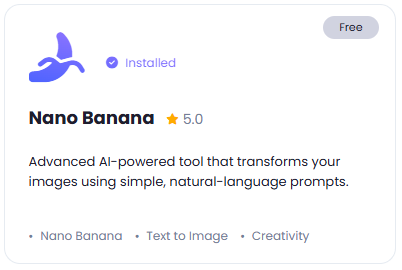
2
Step 2
After installation is completed, go to AI Settings page in Admin Panel and click on Extensions tab there. Click on Nano Banana there.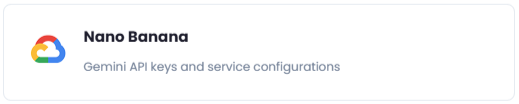
3
Step 3
Go to your Gemini account, sign up herewebsite, if you don’t have an account yet, then sign up with them and get your API Key on your profile page after you successfully complete the registration process on their website using your valid credit card information.
Store your API key securely and never share it publicly. The key provides direct access to your account.
4
Step 4
Enter your API Key in the Extensions tab - Nano Bana page for Google Gemini API key field and click Save button.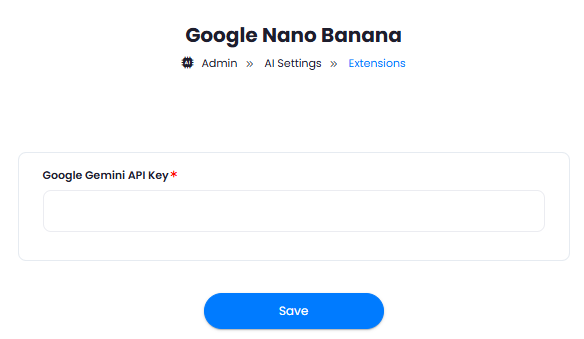
5
Step 5
You now have completed the Nano Banana extension configuration. Proceed to the section below on how to use it.
AI Image Configuration
Davinci AI provides you full control on which image generation AI vendors you want your users to have access with in AI Images feature. Plus you can control it both for Free Tier users and for Subscribers based on their subcription plans.For Subscription plans you need to have an Extended License
- Go to AI Settings page in Admin Panel and select General AI Settings page
- Scroll to AI Image Settings (For All Groups) section and select Google among the list as shown on the image below and click Save button.
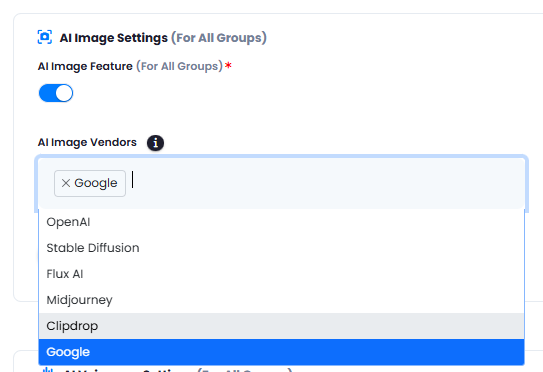
- Now all users can see Nano Banana model available in the AI Images features upon selecting target image models.
You have successfully comleted the setup process of Nano Banana extension.