> ## Documentation Index
> Fetch the complete documentation index at: https://davinci.mintlify.site/llms.txt
> Use this file to discover all available pages before exploring further.
# SaaS Business
> Create your own SaaS Business with Davinci AI and start earning millions!
To start your `SaaS Business` with Davinci AI, you are required to have `Extended License`
## Installation
To have access to all SaaS features, you first need to install **SaaS Business** extension via Marketplace, follow the steps below to **install** and **configure** SaaS Business extension.
At this point you are required to have **Extended License** to continue
Go to the **Marketplace** in **Admin Panel** and install **SaaS Business** extension.
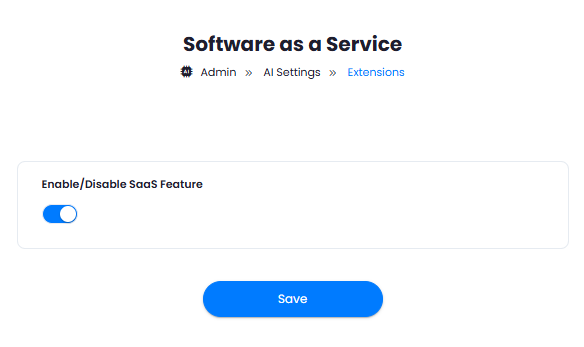
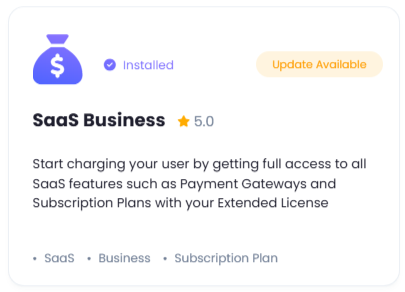 After installation is completed, go to **AI Settings** page in Admin Panel and click on **Extensions** tab there. Click on **SaaS Business** tab there.
 1. Turn on the checkboxes for **Enable/Disable SaaS feature**\
If you don't turn on this checkbox, all SaaS features will not be available to anyone including for admin users.
2. After you are done with setup click on **Save** button.
3. Next, refresh your browser page, and you will see **Finance Management** tab appear in the **Admin Panel**, from there you can control all SaaS related features includoing setup and configuration of Payment Gateways.
1. Turn on the checkboxes for **Enable/Disable SaaS feature**\
If you don't turn on this checkbox, all SaaS features will not be available to anyone including for admin users.
2. After you are done with setup click on **Save** button.
3. Next, refresh your browser page, and you will see **Finance Management** tab appear in the **Admin Panel**, from there you can control all SaaS related features includoing setup and configuration of Payment Gateways.
 You now have completed the SaaS Business extension configuration. Refer to the addtional tabs under **SaaS Features** tab in the menu panel to configure rest of the SaaS features as needed.
Congratulations! You have successfully completed installation of SaaS Business extension for Davinci AI.
You now have completed the SaaS Business extension configuration. Refer to the addtional tabs under **SaaS Features** tab in the menu panel to configure rest of the SaaS features as needed.
Congratulations! You have successfully completed installation of SaaS Business extension for Davinci AI.