> ## Documentation Index
> Fetch the complete documentation index at: https://davinci.mintlify.site/llms.txt
> Use this file to discover all available pages before exploring further.
# Youtube API Integration
> Generate blog posts and other content with AI Youtube feature by simply including your Youtube API key.
## Introduction
Davinci AI's AI Youtube feature allows you to generate following content out of your Youtube videos:
* Blog posts
* Outlines
* Explaining main ideas
* Creating extended description
* Summarizing the content
* Preparing pros and cons
## Youtube Configuration
To be able to use your Youtube API, follow these steps to setup integration.
Log in to [Google Developers Console](https://console.cloud.google.com/)
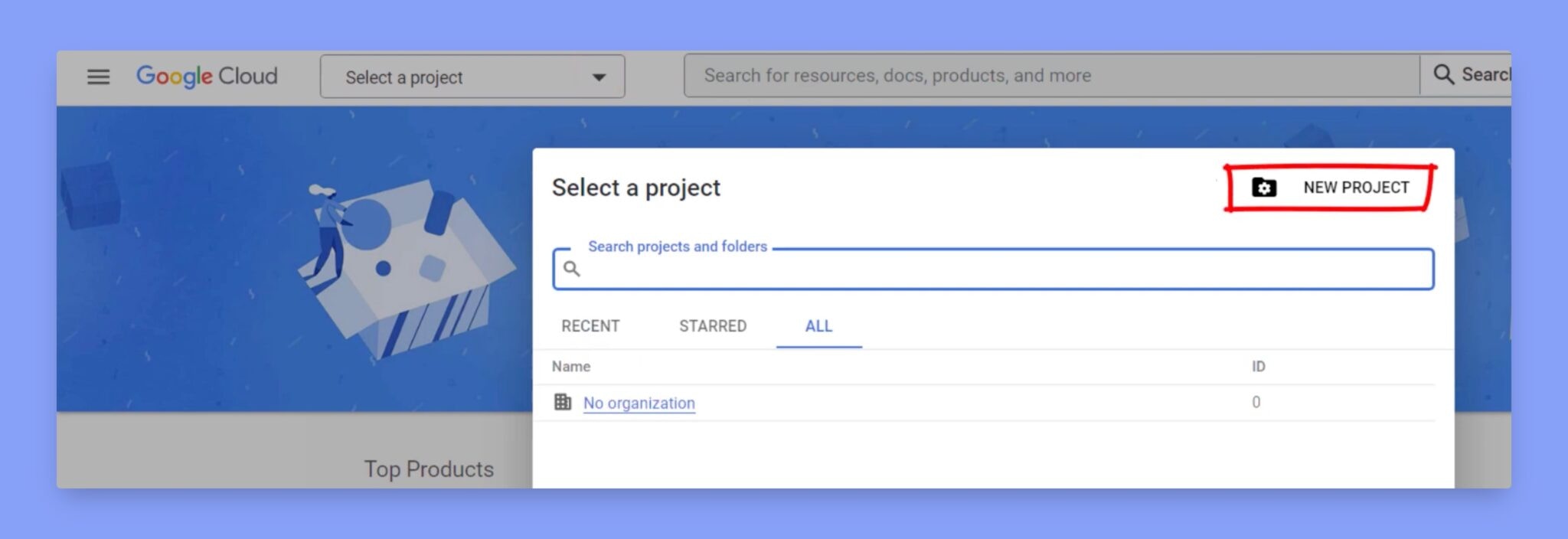
Now, you have to create a new project on the developer console. To create a new project, click on the dropdown menu at the top of the page labeled **Select a project**. Then click **New Project**, and enter the project name, select your organization (if applicable), and then click **Create**.
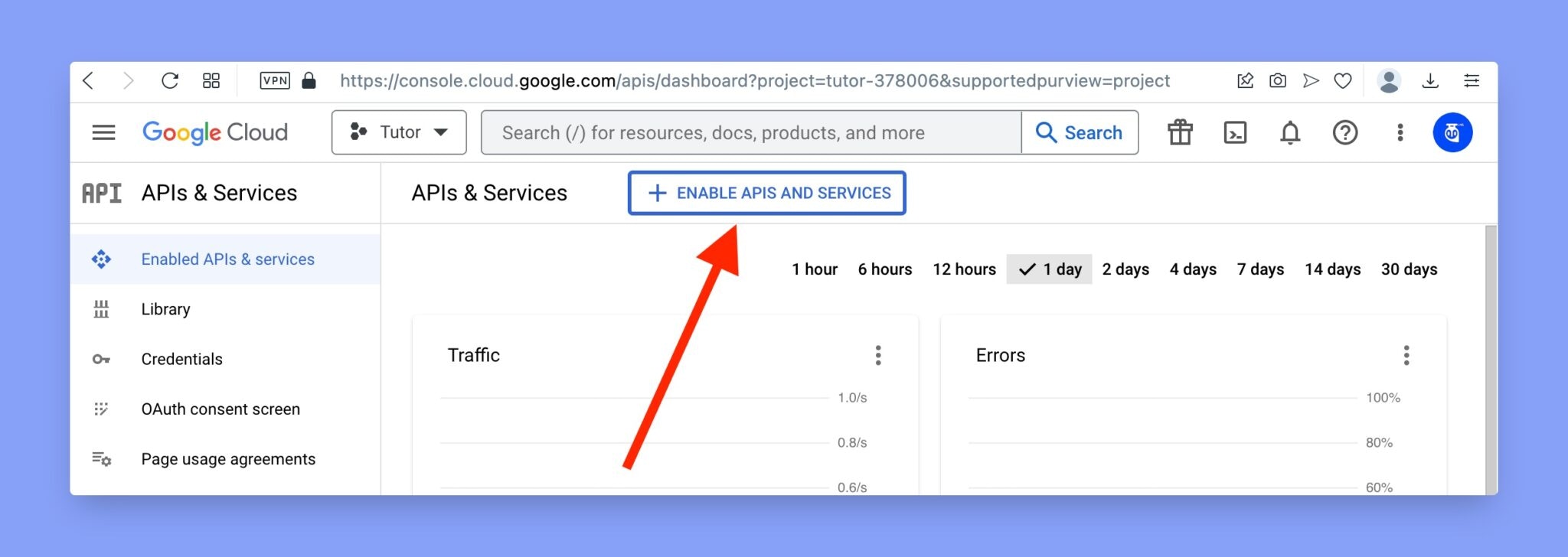
 Once your project is created, you’ll need to enable the **YouTube Data API** in order to access its functionality. To do this, go to your project and click on the **APIs & Services** menu on the left-hand side of the console. From here, click the **Enable APIs and Services** button.
 Then look for **YouTube Data API V3**. You can either search it from the search box or simply scroll down.
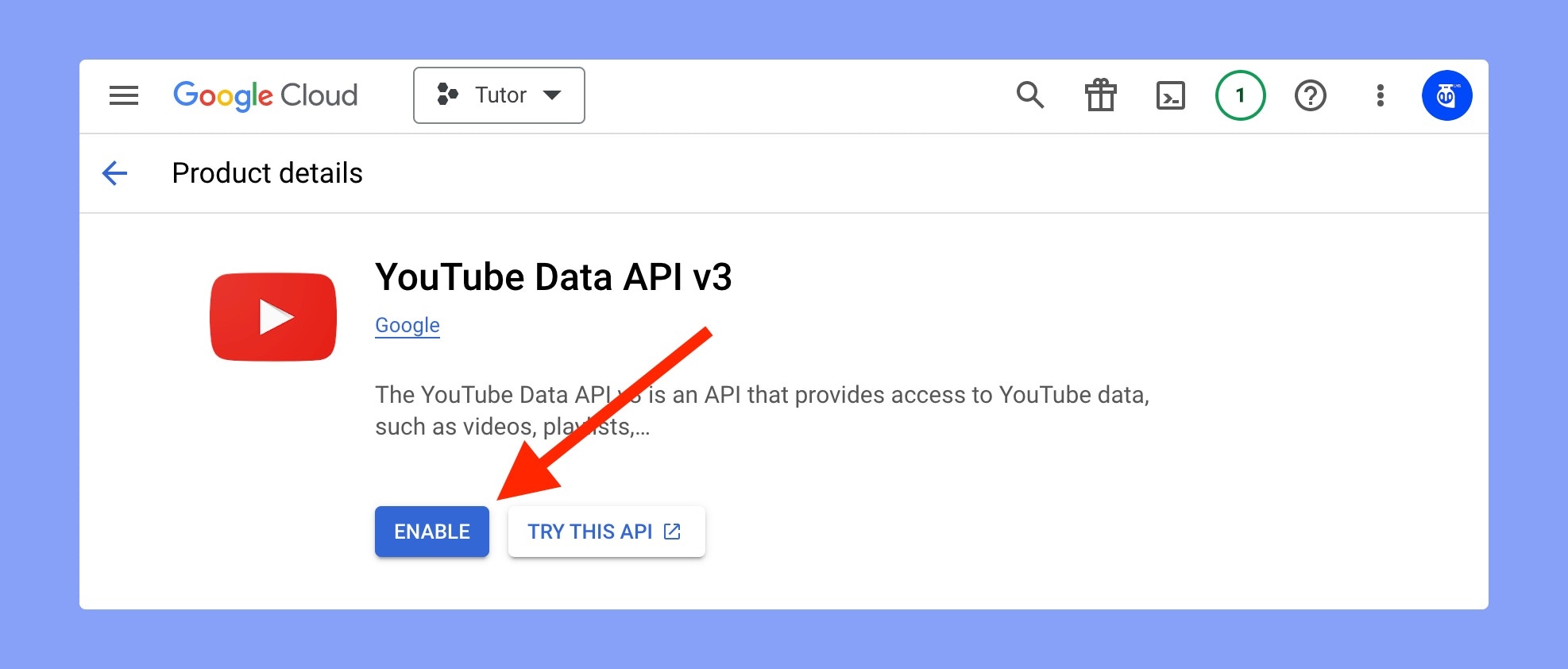
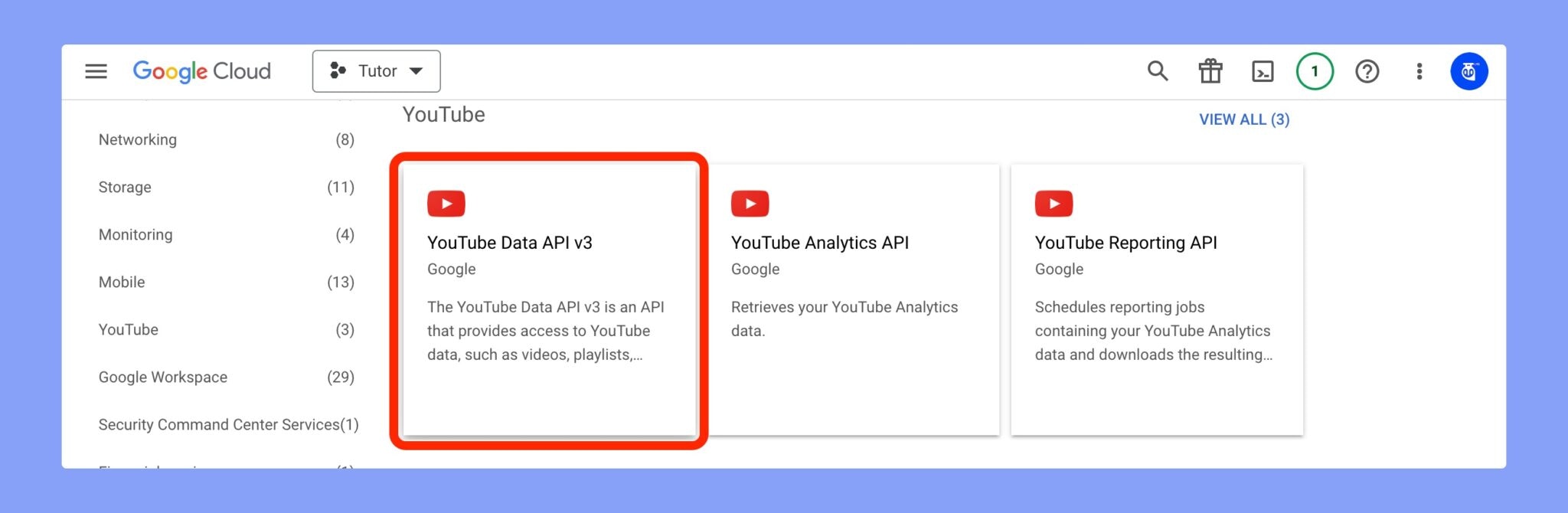 Next, click on the **YouTube Data API V3** API and click the **Enable** button.
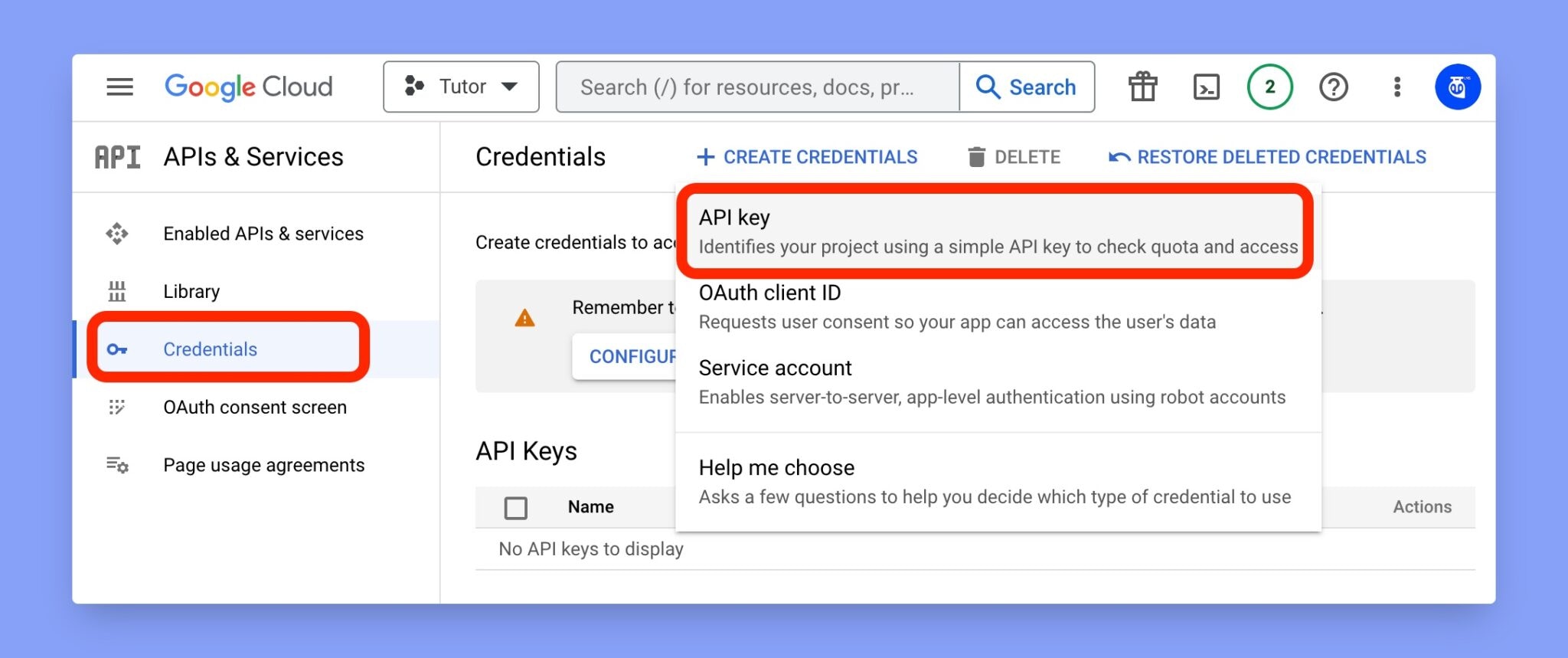
 After enabling the API, you’ll need to create credentials to authenticate your application when it makes requests to the API. To create credentials, click on the **Create credentials** button on the API Dashboard page, and select **API key** from the dropdown menu.
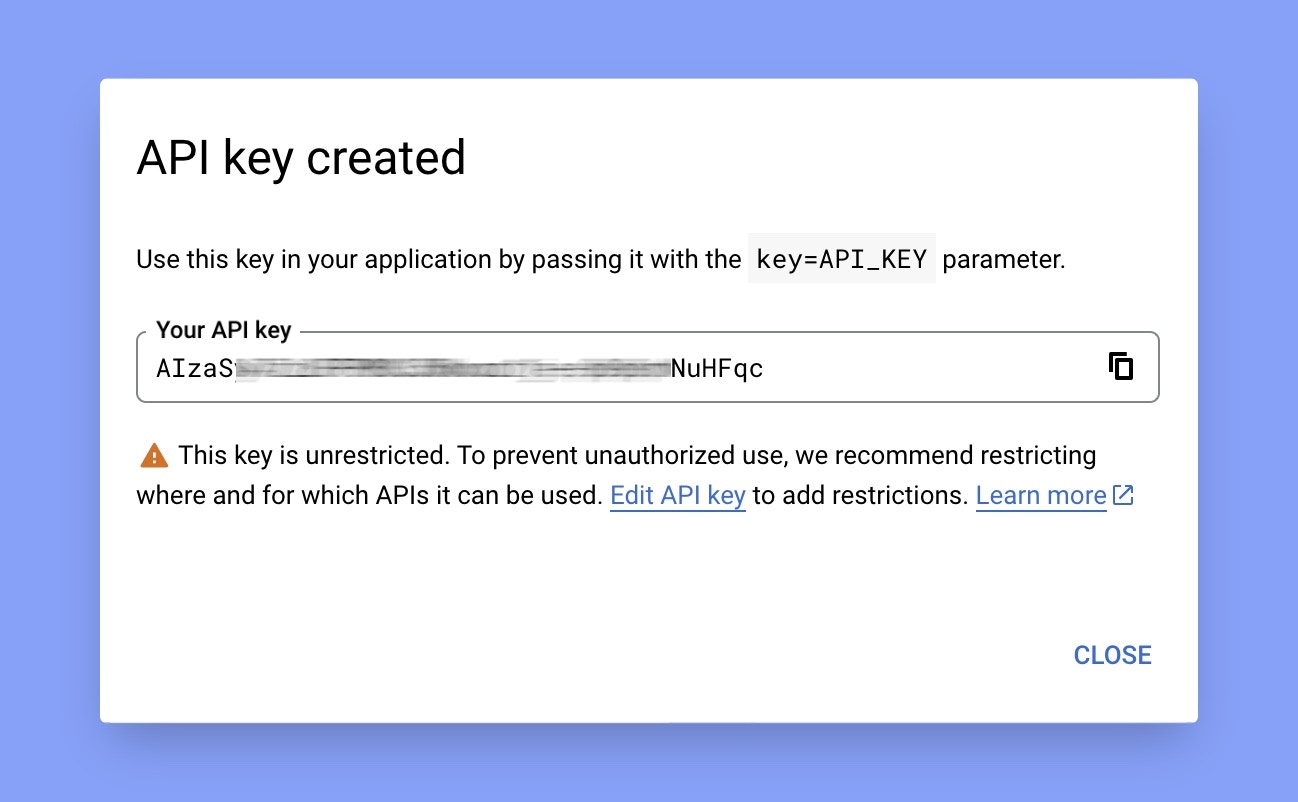
 Then it will take around 2-3 seconds and you’ll get your API key. Now, copy that key.\
Keep your API key secure. It provides access to Youtube API’s services and should not be shared publicly.
Then it will take around 2-3 seconds and you’ll get your API key. Now, copy that key.\
Keep your API key secure. It provides access to Youtube API’s services and should not be shared publicly.
 Next, login to Davinci AI using your admin credentials and in **Admin Panel**, navigate to **AI Settings** -> **AI API Keys** tab.
Click on **Youtube** tab there.
Next, login to Davinci AI using your admin credentials and in **Admin Panel**, navigate to **AI Settings** -> **AI API Keys** tab.
Click on **Youtube** tab there.
 Include your API key under **Serper API Key** input field.
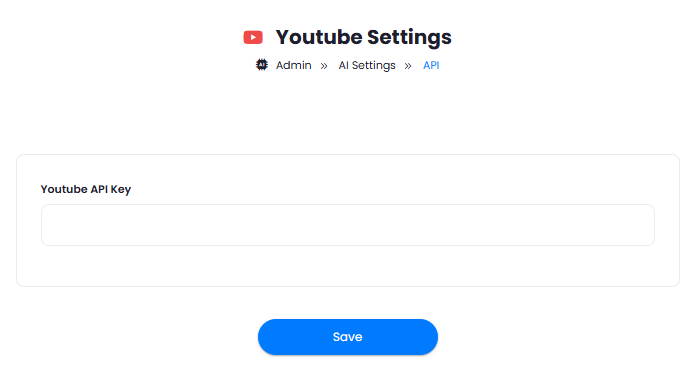 After you are done with configurations, click on **Save** button.
Congratulations! You have successfully comleted the Youtube API setup process.
After you are done with configurations, click on **Save** button.
Congratulations! You have successfully comleted the Youtube API setup process.