> ## Documentation Index
> Fetch the complete documentation index at: https://davinci.mintlify.site/llms.txt
> Use this file to discover all available pages before exploring further.
# Serper API Integration
> Enhance your Davinci AI platform with Serper API’s Google search capabilities. This guide walks you through setting up and leveraging Serper API for real-time search results.
## Introduction
Davinci AI’s Serper API integration unlocks real-time Google search capabilities for your platform. By integrating Serper.dev’s API, you can significantly enhance your AI Chat and AI Writer tools, allowing users to access up-to-date search results directly within their conversations.
## Serper API Configuration
To be able to use your Serper API, follow these steps to setup integration.
If you don’t have a Serper account, [sign up here](https://serper.dev/)
Once logged in, you’ll be taken to your Serper dashboard, click on the **API Key** menu item
Copy your API key from the popup that appears.
Keep your API key secure. It provides access to Serper API’s services and should not be shared publicly.
Serper provides a dashboard where you can monitor your API usage, including the number of requests made in the last 30 days and 24 hours, as well as your total credits used.
Login to Davinci AI using your admin credentials.
In **Admin Panel**, navigate to **AI Settings** -> **AI API Keys** tab.
Click on **Serper** tab there.
 Include your API key under **Serper API Key** input field.
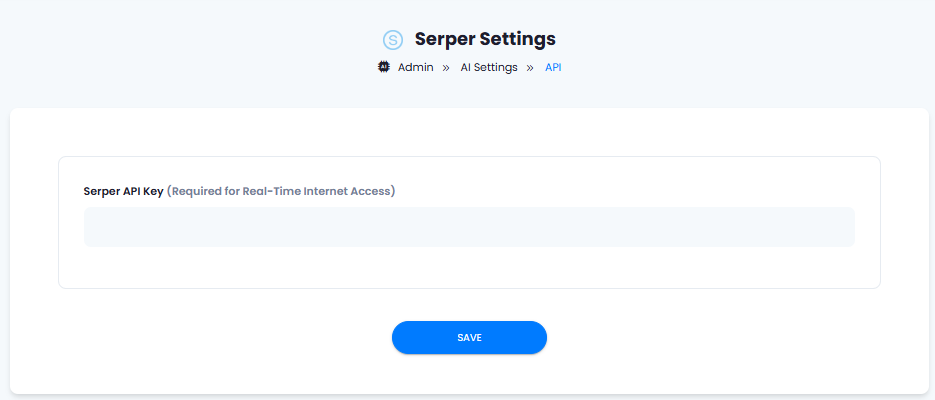 After you are done with configurations, click on **Save** button.
Congratulations! You have successfully comleted the Serper API setup process.
## Davinci AI Tools Powered by Serper API
Following AI tools can be used with Serper API
Support for more AI tools will be added soon, we are actively working on that
1. **AI Chat** (including **Custom Chat Assistants**) - chat conversations and get instant answers.
2. **AI Writer** (including **Custom Templates**) - Generate high-quality content for various purposes.
## How to Use Serper API
These steps will explain you how you can use Serper API:
1. Login to Davinci AI using your admin credentials.
2. In **Admin Panel**, navigate to **AI Settings** -> **General AI Settings** tab.
3. Under **Real Time Data Access Engine**, select **Serper** and click on **Save** button.
After you are done with configurations, click on **Save** button.
Congratulations! You have successfully comleted the Serper API setup process.
## Davinci AI Tools Powered by Serper API
Following AI tools can be used with Serper API
Support for more AI tools will be added soon, we are actively working on that
1. **AI Chat** (including **Custom Chat Assistants**) - chat conversations and get instant answers.
2. **AI Writer** (including **Custom Templates**) - Generate high-quality content for various purposes.
## How to Use Serper API
These steps will explain you how you can use Serper API:
1. Login to Davinci AI using your admin credentials.
2. In **Admin Panel**, navigate to **AI Settings** -> **General AI Settings** tab.
3. Under **Real Time Data Access Engine**, select **Serper** and click on **Save** button.
 Davinci AI allows you to easily toggle between Serper API and Perplexity API for live Google search results
4\. If you want your **Free Tier** users to be able to use **Realtime Time Data Access** feature, then navigate to **AI Settings** -> **Free Trial Features** tab and turn on **Realtime Time Data Access** checkbox, afterwards click on **Save** button.
Davinci AI allows you to easily toggle between Serper API and Perplexity API for live Google search results
4\. If you want your **Free Tier** users to be able to use **Realtime Time Data Access** feature, then navigate to **AI Settings** -> **Free Trial Features** tab and turn on **Realtime Time Data Access** checkbox, afterwards click on **Save** button.
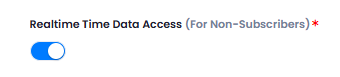 5. Now on every AI Chat Assistant and on every AI Writer Templates, users will see **Real-Time Data Access** checkbox, which they need to simply turn on to be able to use real time data in their questions.