> ## Documentation Index
> Fetch the complete documentation index at: https://davinci.mintlify.site/llms.txt
> Use this file to discover all available pages before exploring further.
# Twitter Login Auth
> Let your users to login and register using their own Twitter accounts for simplicity
## Introduction
Davinci AI provides you a solution to let your users login using multiple different social media accounts that they use on a daily basis.
## Configure Twitter
To let users to login and register using their Twitter accounts, follow the steps below:
Visit Twitter [Developer Portal](https://developer.twitter.com/en/portal) page.
Once you are logged in your Twitter Developer account, create a new **project** or use your existing one.
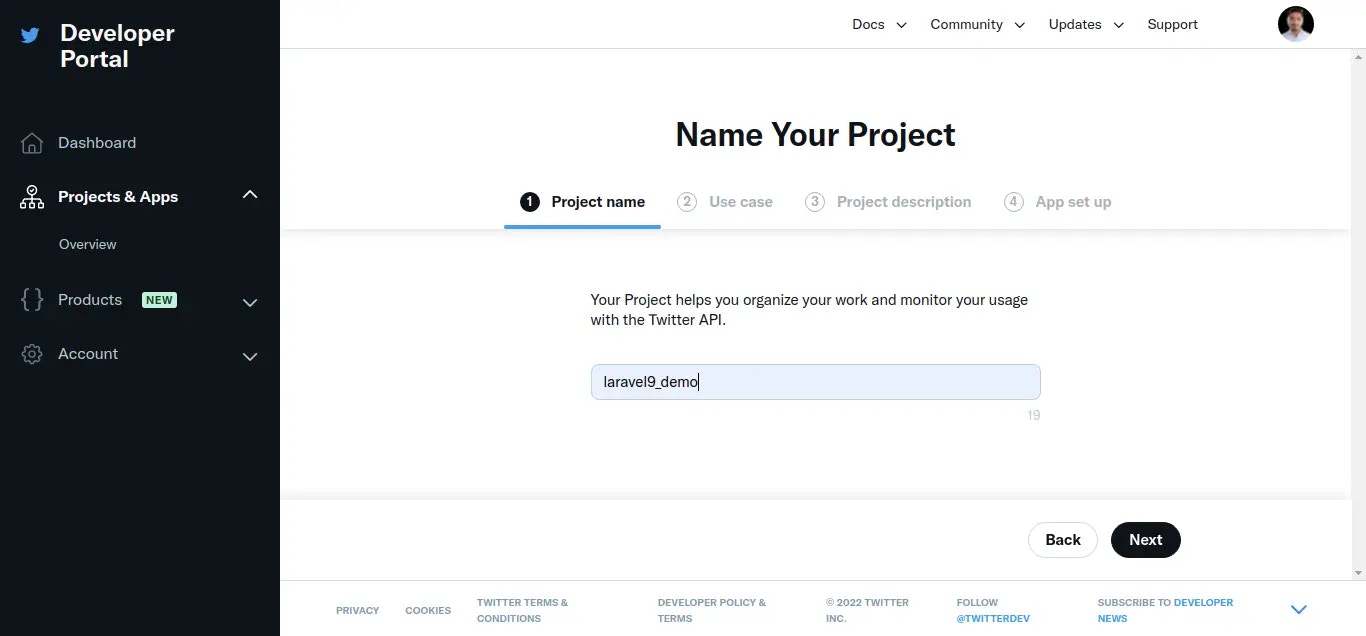
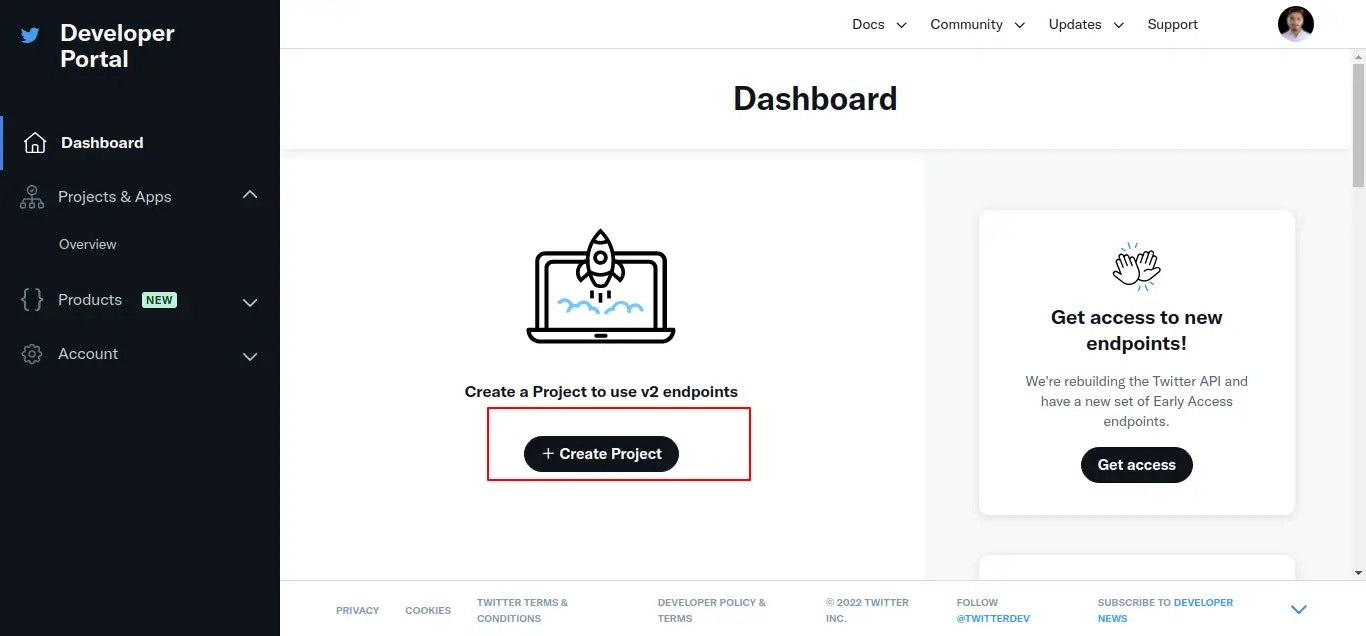 Fill in all the details as you prefer, it is visible only to you.
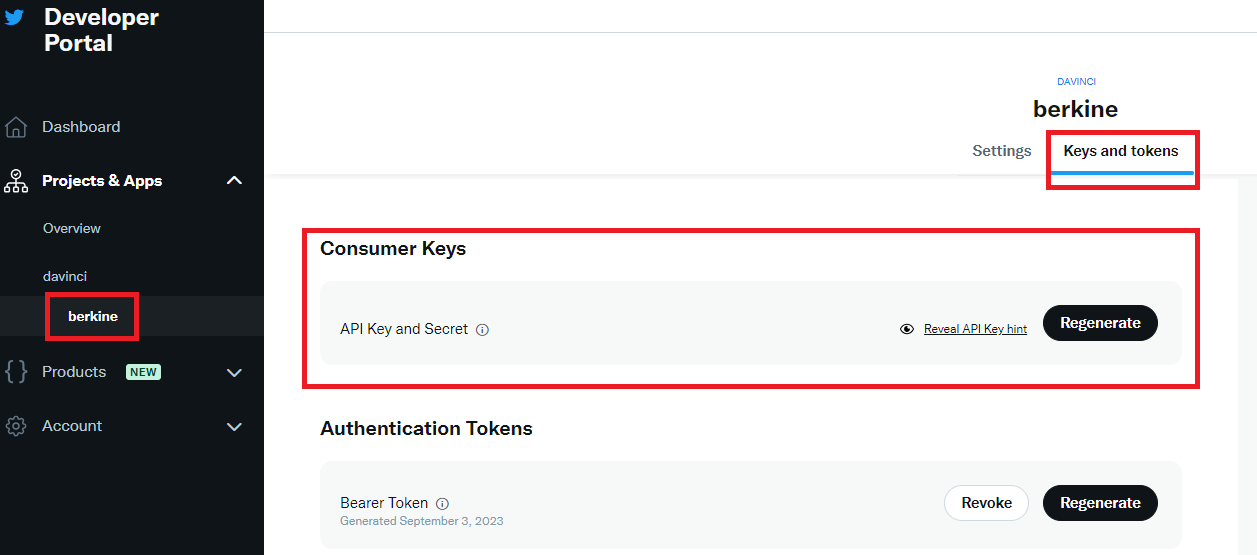
 Under **Keys and tokens** tab, make sure to copy your **API Key** and **Secret Key**.
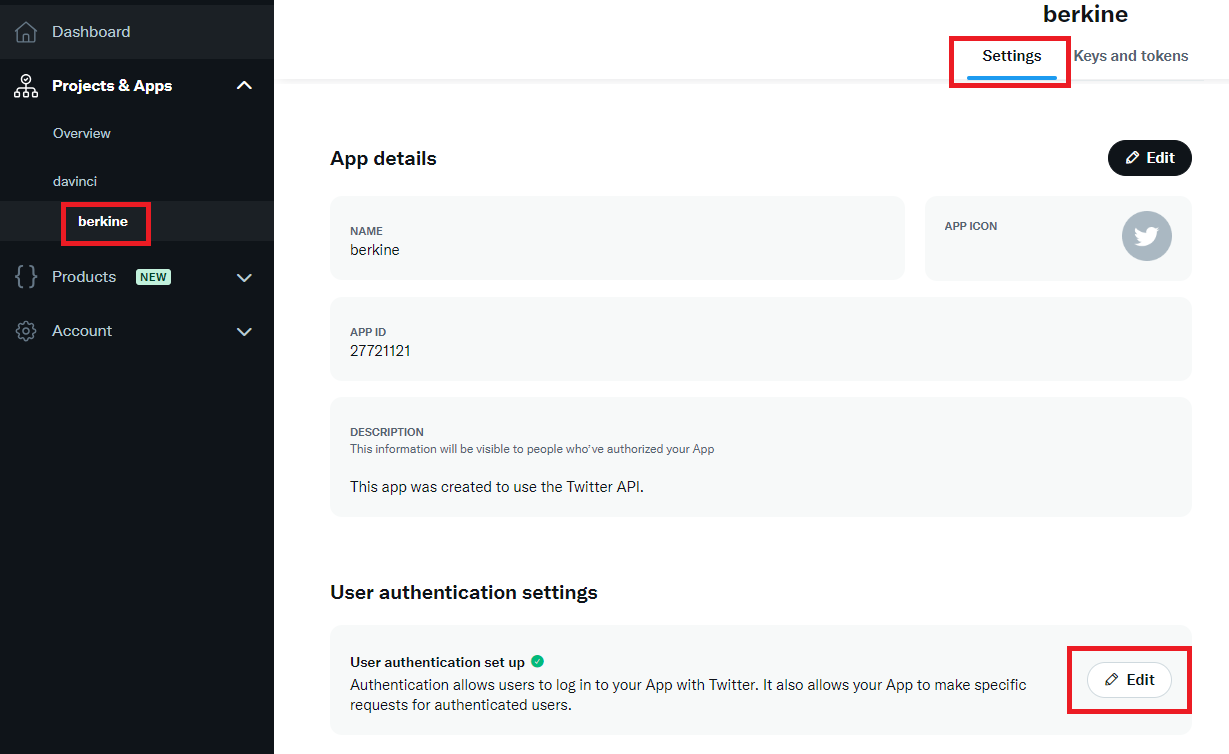
 Next, select your app and click on **Edit** button under **User authentication settings** box.
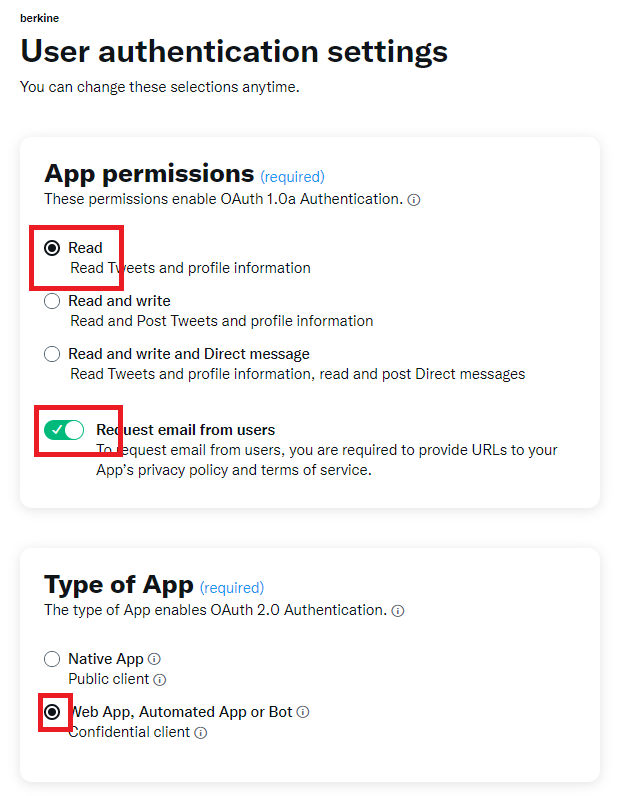
 Setup **App Permissions** and **Type of App** as shown in the image below.
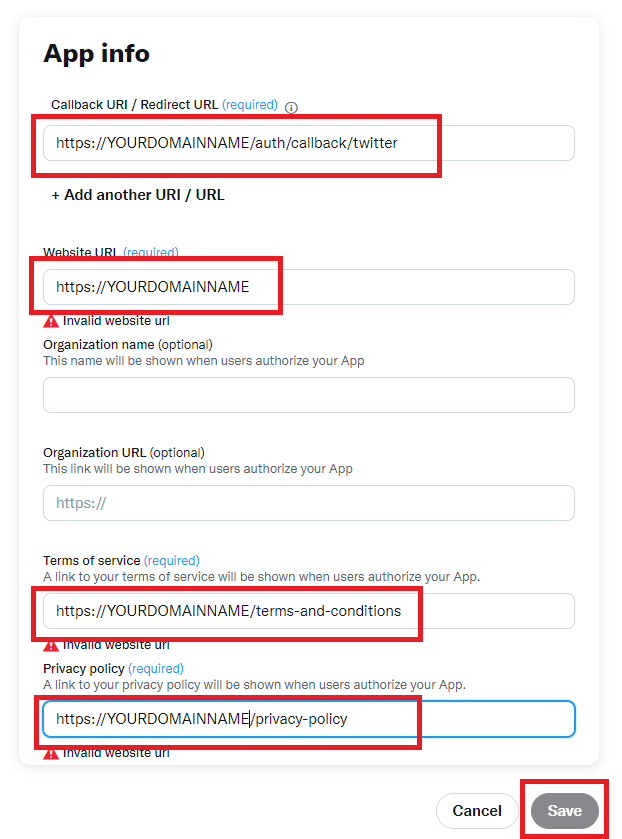
 Setup **App info** section and fill all 4 fields as shown in the image, replace **YOURDOMAINNAME** with your domain and make sure that there are no typos in any of the inputs, click save afterwards. You don't need Cliend IDs generated at the end for this particular scirpt.
 Go to **Admin Panel** -> **General Settings** -> **Auth Settings** page, this is where you configure all social media login accounts and settings.
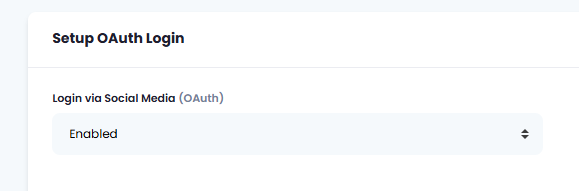
1. First, enable **Login via Social Media** (OAuth)
Go to **Admin Panel** -> **General Settings** -> **Auth Settings** page, this is where you configure all social media login accounts and settings.
1. First, enable **Login via Social Media** (OAuth)
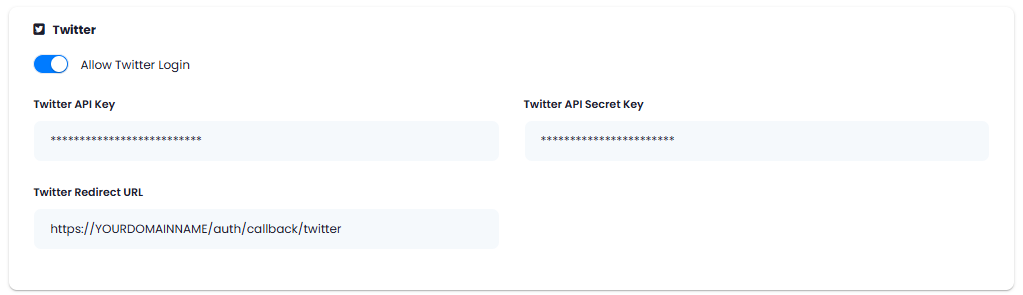
 2. Next, include your Twitter API keys and enter your domain name there as well if it not shown already for you.
 After you are done with configurations, click on **Save** button.
Congratulations! You have successfully comleted the Login and Registration with Twitter process.
After you are done with configurations, click on **Save** button.
Congratulations! You have successfully comleted the Login and Registration with Twitter process.