> ## Documentation Index
> Fetch the complete documentation index at: https://davinci.mintlify.site/llms.txt
> Use this file to discover all available pages before exploring further.
# OpenAI Integration
> Supercharge your Davinci AI platform with OpenAI’s cutting-edge AI capabilities. This guide walks you through setting up and leveraging OpenAI’s powerful models for content creation, coding assistance, image generation, and more.
## Introduction
Davinci AI’s OpenAI integration unlocks a world of AI-powered possibilities for your platform. From natural language processing to image generation, OpenAI’s advanced models can enhance various aspects of your Davinci AI experience.
## Available Models and Tools
Davinci AI leverages a wide range of OpenAI models to power various tools and features:
### LLM Text Generation Models
* OpenAI | GPT 5.1
* OpenAI | GPT 5
* OpenAI | GPT 5 mini
* OpenAI | GPT 5 nano
* OpenAI | GPT 5 chat
* OpenAI | o4 mini
* OpenAI | o3
* OpenAI | o3 mini
* OpenAI | o1 mini
* OpenAI | o1
* OpenAI | GPT 4.5
* OpenAI | GPT 4 Turbo
* OpenAI | GPT 4o mini
* OpenAI | GPT 4o
* OpenAI | GPT 4o Search Preview
* OpenAI | GPT 4o mini Search Preview
* OpenAI | GPT 4
* OpenAI | GPT 3.5 Turbo
### Image Generation Models
* OpenAI | Dalle 3 HD
* OpenAI | Dalle 3
* OpenAI | Dalle 2
### Audio Processing Models
* OpenAI | TTS-1 and TTS-1-HD (for text to speech)
* OpenAI | Whisper (for speech to text)
### Embedding Models
* OpenAI | text-embedding-3-large
* OpenAI | text-embedding-3-small
* OpenAI | text-embedding-ada-002
## Connect OpenAI Account
To be able to use your OpenAI API, follow these steps to setup integration.
If you don’t have an OpenAI account, sign up here
Once logged in, navigate to the API keys page
Click on **Create new secret key** make sure you set the permission to be **All**, that way you can use one API key for all OpenAI features, next copy the generated API key
Keep your API key secure. It provides access to OpenAI’s services and should not be shared publicly.
Login to Davinci AI using your admin credentials.
In **Admin Panel**, navigate to **AI Settings** -> **AI API Keys** tab.
Click on **OpenAI** tab there.
 Include your API key under **OpenAI Secret Key (Main API Key)** input field.
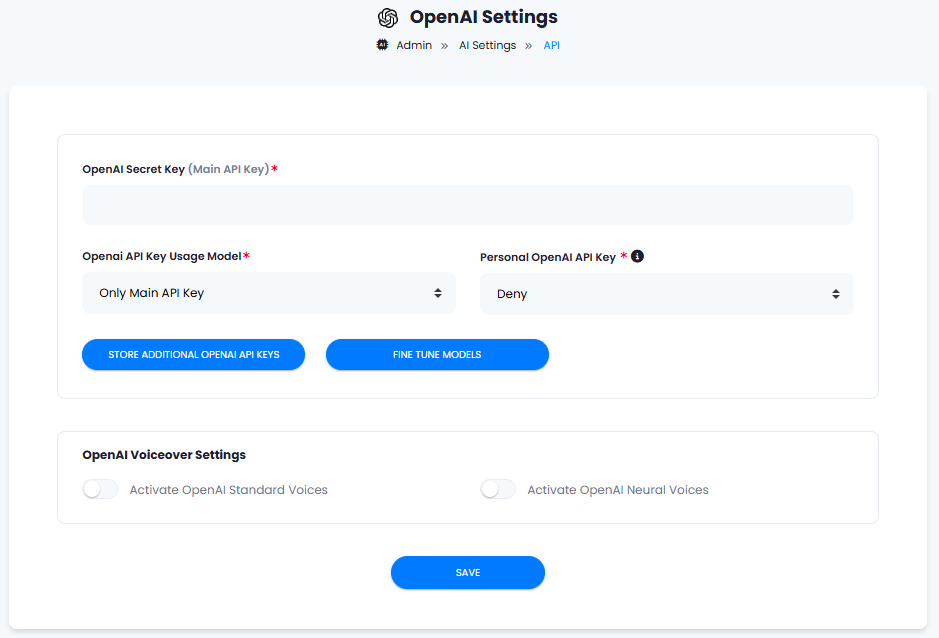 If you want to use OpenAI for **AI Voiceover** feature as well make sure to activate checkboxes under **OpenAI Voiceover Settings** ection.
After you are done with configurations, click on **Save** button.
Congratulations! You have successfully comleted the OpenAI setup process.
## Davinci AI Tools Powered by OpenAI
Following AI tools can be used with OpenAI models
1. **AI Chat** - chat conversations and get instant answers.
2. **AI Realtime Voice Chat** - use voice commands to chat with the chatbots.
3. **AI Writer** - Generate high-quality content for various purposes.
4. **AI Article Wizard** - Generate large texts easitly in a step by step wizard
5. **Smart Editor** - Advanced editor for both original and cutom templates
6. **AI Code** - Generate code samples for any programming language as needed
7. **AI Image** - Generate images with additional image features
8. **AI Vision** - Analyzie your images for various semantics
9. **AI Voiceover** - Convert any text into audio
10. **AI ReWriter** - Rewrite any text as you prefer
11. **AI Speech to Text** - Transcribe any audio files into text
12. **AI File Chat** - Use your files in the chat to ask any questions about it
13. **AI Web Chat** - Use your website URL in the chat to ask any questions about it
14. **AI Chat Image** - Use chat to generate any AI images
## Best Practices
To make the most of your OpenAI integration:
* Experiment with different models to find the best fit for your use case.
* Use clear and specific prompts to get the most accurate results.
* Monitor your API usage to manage costs effectively.
Available only for Extended License users
If you want to use OpenAI for **AI Voiceover** feature as well make sure to activate checkboxes under **OpenAI Voiceover Settings** ection.
After you are done with configurations, click on **Save** button.
Congratulations! You have successfully comleted the OpenAI setup process.
## Davinci AI Tools Powered by OpenAI
Following AI tools can be used with OpenAI models
1. **AI Chat** - chat conversations and get instant answers.
2. **AI Realtime Voice Chat** - use voice commands to chat with the chatbots.
3. **AI Writer** - Generate high-quality content for various purposes.
4. **AI Article Wizard** - Generate large texts easitly in a step by step wizard
5. **Smart Editor** - Advanced editor for both original and cutom templates
6. **AI Code** - Generate code samples for any programming language as needed
7. **AI Image** - Generate images with additional image features
8. **AI Vision** - Analyzie your images for various semantics
9. **AI Voiceover** - Convert any text into audio
10. **AI ReWriter** - Rewrite any text as you prefer
11. **AI Speech to Text** - Transcribe any audio files into text
12. **AI File Chat** - Use your files in the chat to ask any questions about it
13. **AI Web Chat** - Use your website URL in the chat to ask any questions about it
14. **AI Chat Image** - Use chat to generate any AI images
## Best Practices
To make the most of your OpenAI integration:
* Experiment with different models to find the best fit for your use case.
* Use clear and specific prompts to get the most accurate results.
* Monitor your API usage to manage costs effectively.
Available only for Extended License users